Security & Privacy
Form Recover stores data locally on your device, which is secure by default. However, if you use a shared computer—such as a library PC, an office workstation, or a family laptop—other users with access to that browser profile could potentially open the extension.
For these scenarios, the Master Password adds a critical layer of protection.
Master Password
You can set a Master Password to encrypt access to your vault UI.
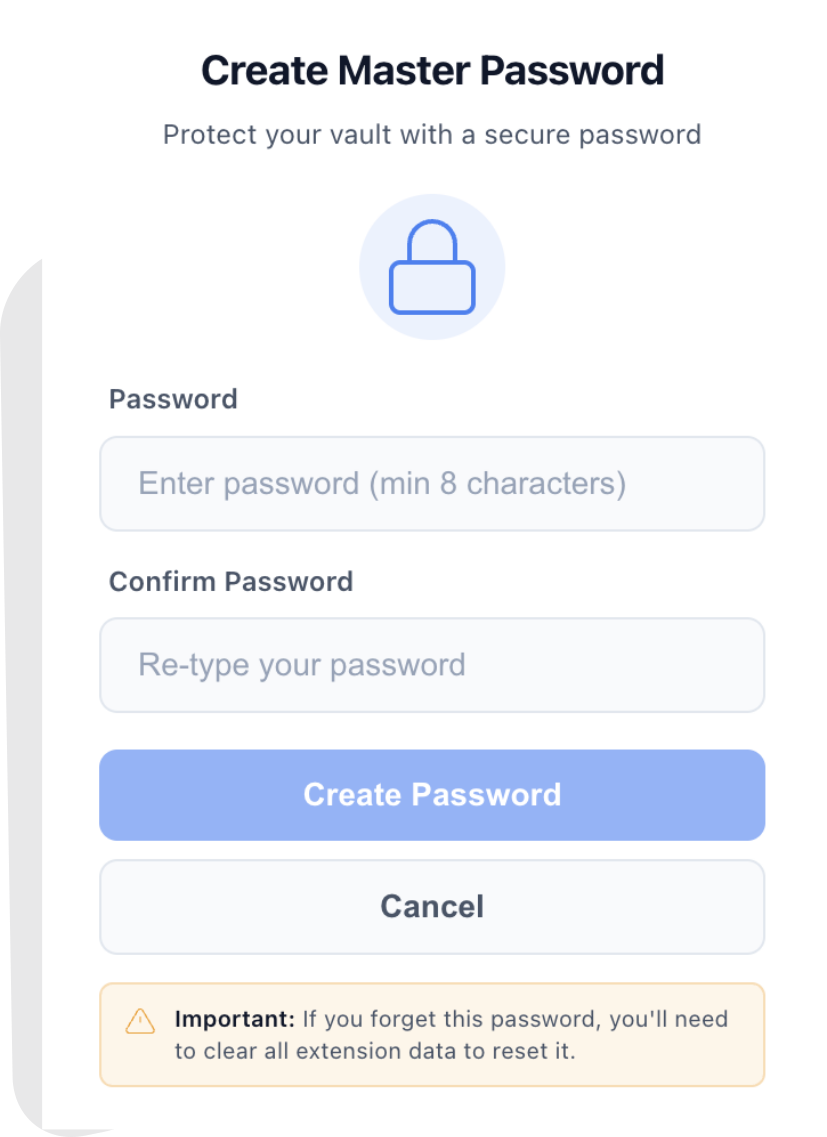
Setup
Go to the Security tab and toggle “Lock Popup”. You will be asked to create a password.
Auto-Lock Settings
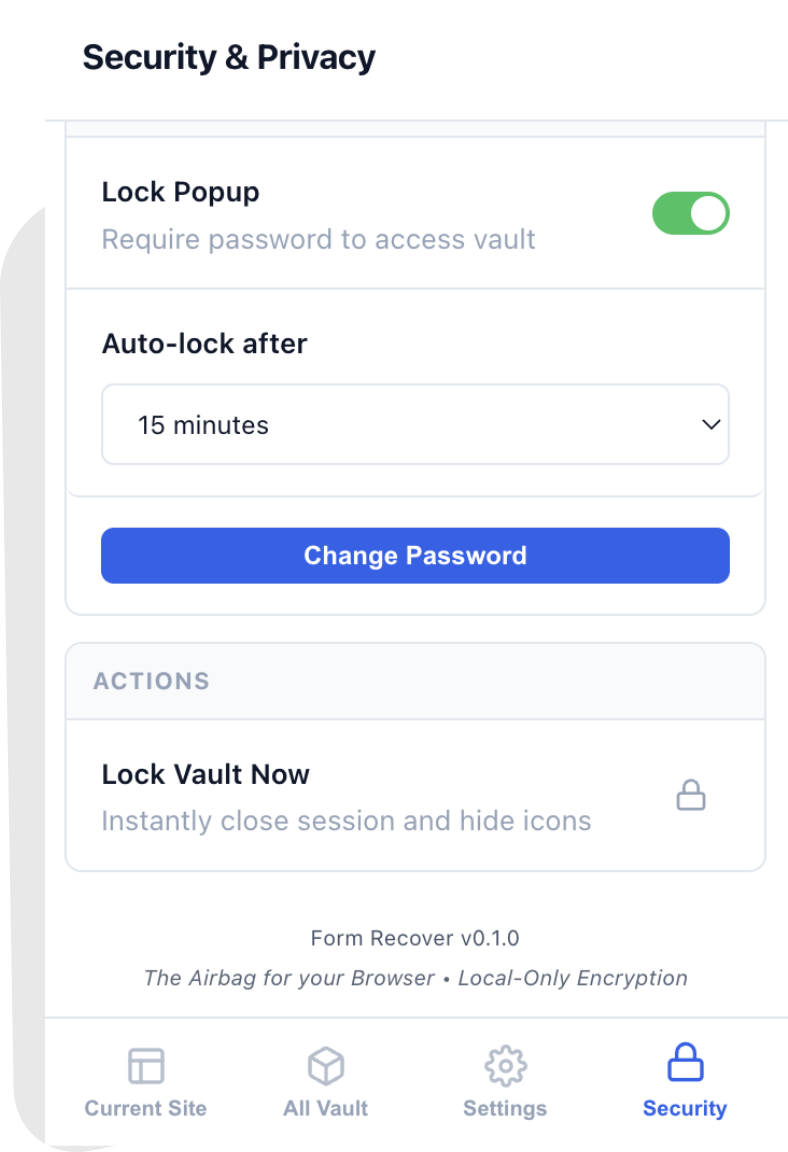
Once enabled, you can configure how quickly the vault locks itself:
- Auto-lock after: 1 min, 15 mins, or on Browser Restart.
- Lock Vault Now: Instantly lock the session.
Locked State
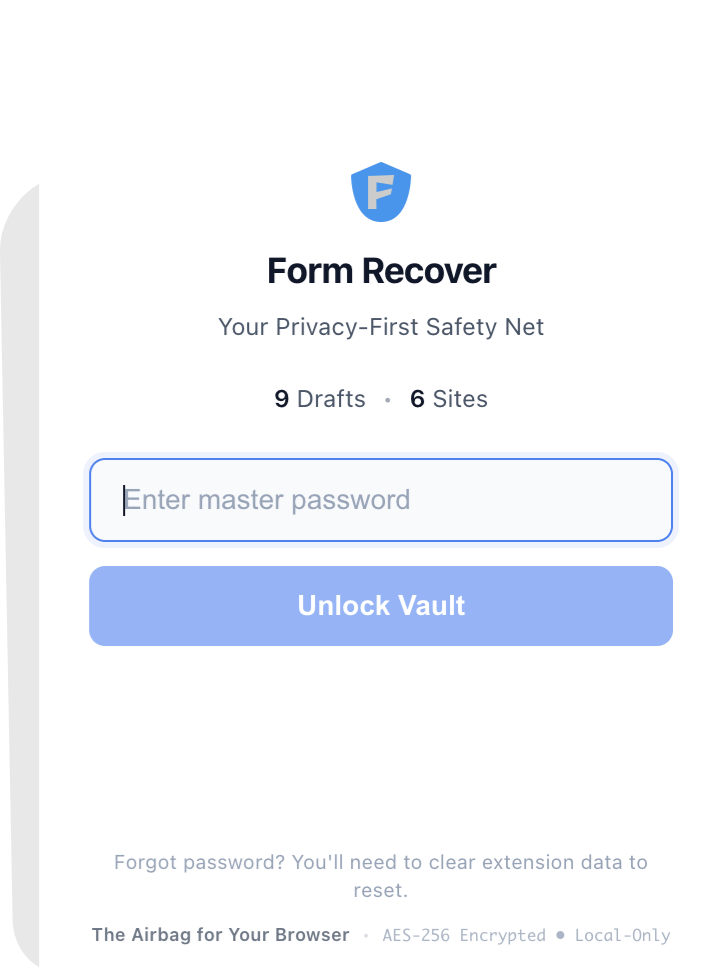
When the vault is locked:
- Popup is blocked: You must enter your password to see any history.
- Ghost Icons are locked: The icon changes to a padlock and will not reveal any text preview or history list until unlocked.
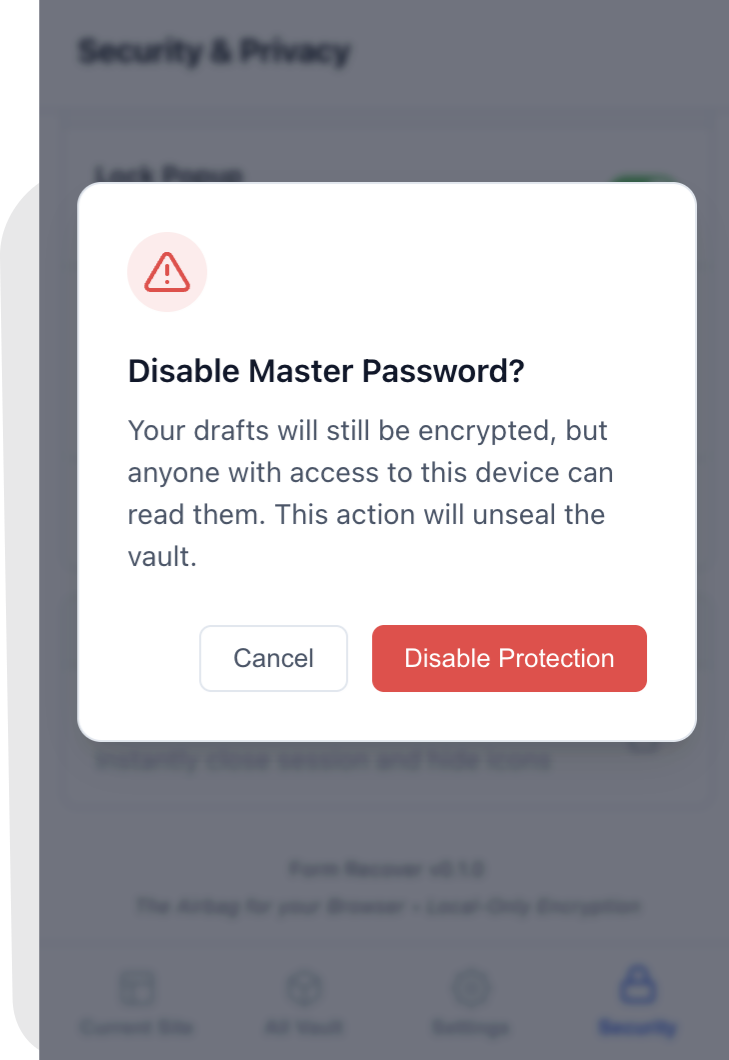
Disabling Security
If you decide you no longer need the password, toggle “Lock Popup” off. You will see a confirmation warning.