Getting Started
Welcome to the Form Recover documentation. This guide will help you understand how the extension works, how to configure it to your needs, and how to use its security features to keep your data safe.
What is Form Recover?
Form Recover is a “set it and forget it” browser extension designed to save your text inputs automatically as you type. If your browser crashes, a tab closes accidentally, or a session times out, your work is safe in your local vault.
Installation
Once you have installed the extension from the Chrome Web Store, it is active immediately. You don’t need to create an account or configure anything to start saving drafts.
- Pin the Extension: We recommend pinning Form Recover to your browser toolbar for easy access to your history vault.
- Zero Configuration: Once installed, the extension is active immediately. It works silently in the background across all websites to detect input fields and protect your drafts. No manual setup or per-site permission is required.
Quick Start: Your First Recovery
To see Form Recover in action, try this simple test:
- Open a website with a text form (e.g., a contact form or a Reddit comment box).
- Type something like: “This is a test draft.”
- Refresh the page (F5). The text usually disappears.
- Click back into the text box.
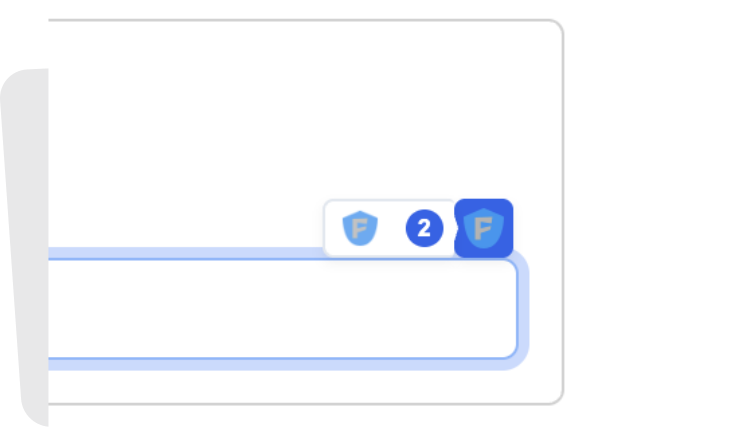
- Look for the Ghost Icon in the corner. Click it to restore your text.
Ready to dive deeper?