Core Features
The core power of Form Recover lies in its ability to be invisible until you need it.
The Ghost Icon
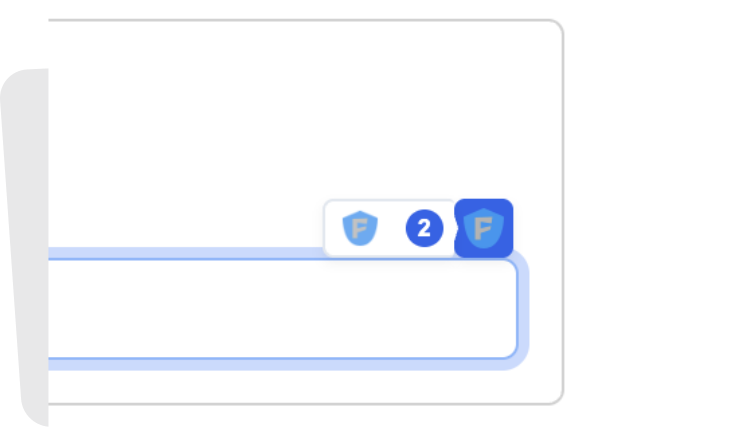
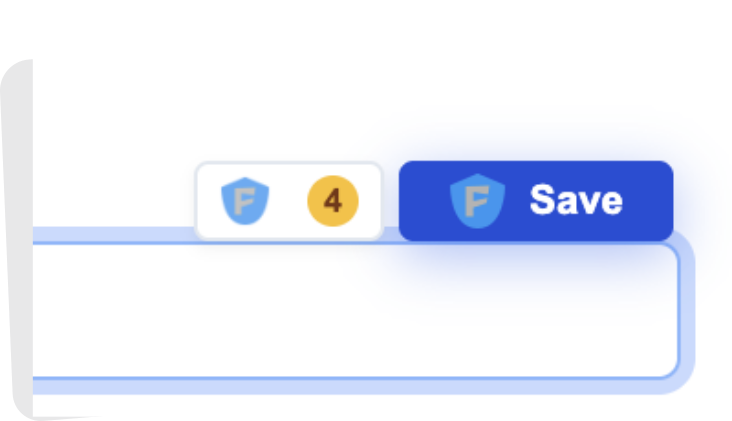
The Ghost Icon is your primary recovery tool. It appears automatically inside input fields, but only when it’s relevant.
- Visibility: The icon only appears when you focus (click into) a field that has saved history.
- Badge Count: A small number on the icon indicates how many draft versions are available for that field (up to 5 recent versions).
History List Popup
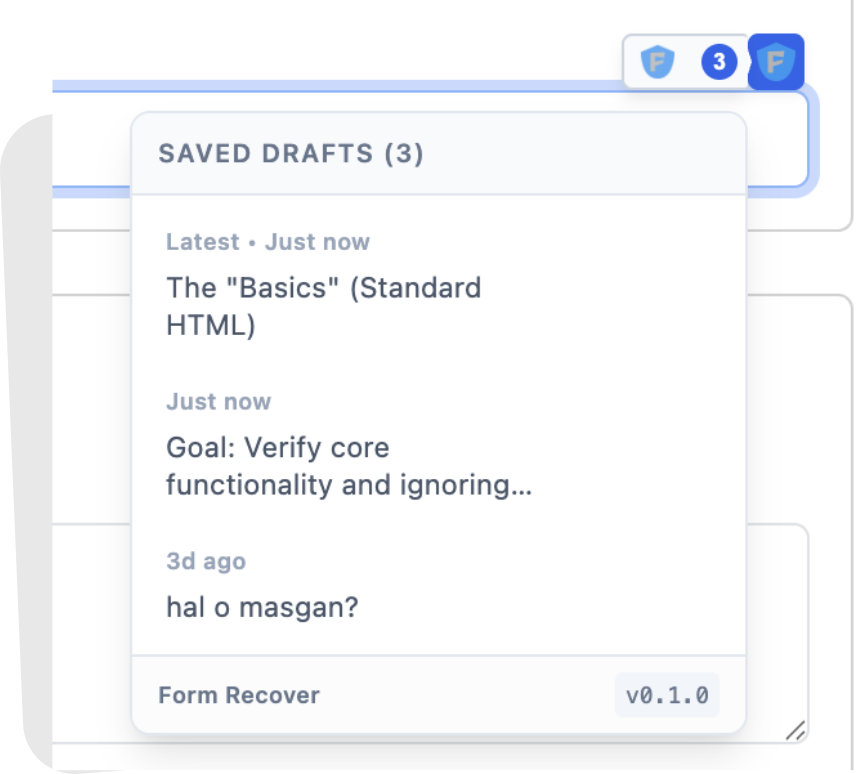
Clicking the Ghost Icon opens the History List. This isn’t just a simple “Undo” button—it’s a time machine.
- Restore: Click the Restore Icon to immediately inject that version into the field.
- View Detail: Click the Eye Icon to open the full content viewer (useful for very long texts).
History Detail Modal
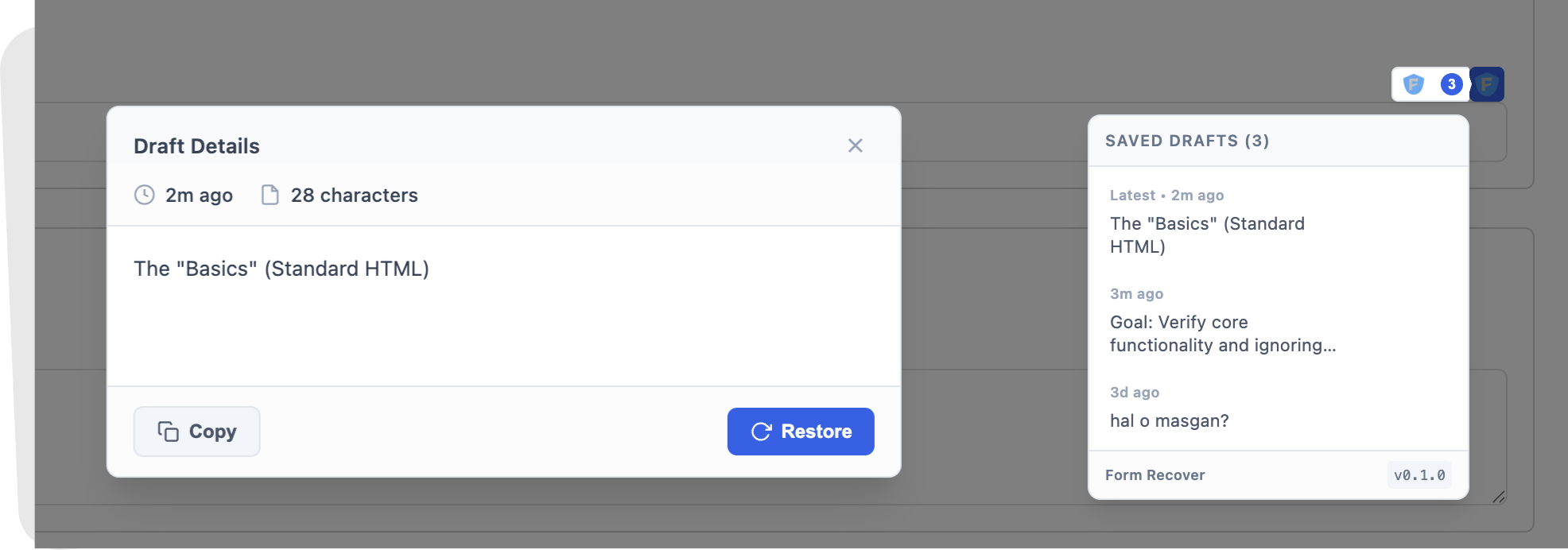
For long-form content, the Detail Modal gives you a distraction-free view. You can copy the text to your clipboard or restore it directly.
Manual Save Button
While Form Recover saves automatically as you type, sometimes you want the peace of mind of a “Hard Save”.
- Location: Appears right next to the Ghost Icon when you are typing.
- Behavior: Hover over the blue button to expand it. Click it to force a save instantly.
- Auto-Save: If Auto-Save is enabled (default), this button will appear briefly and then hide once the system saves your work.
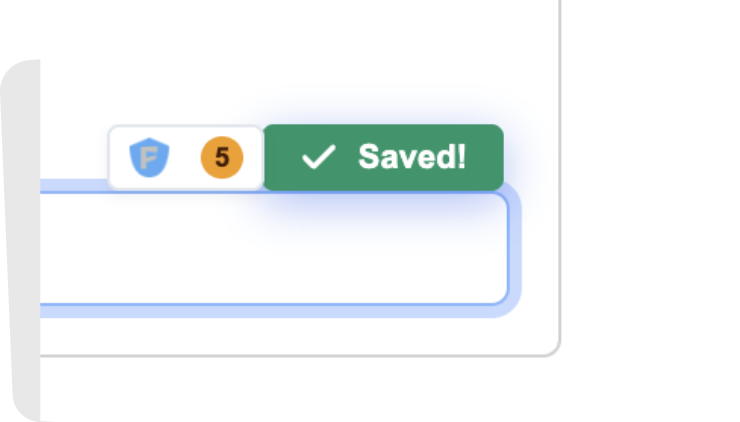
When a save is successful, you’ll see a green confirmation animation.