Configuration
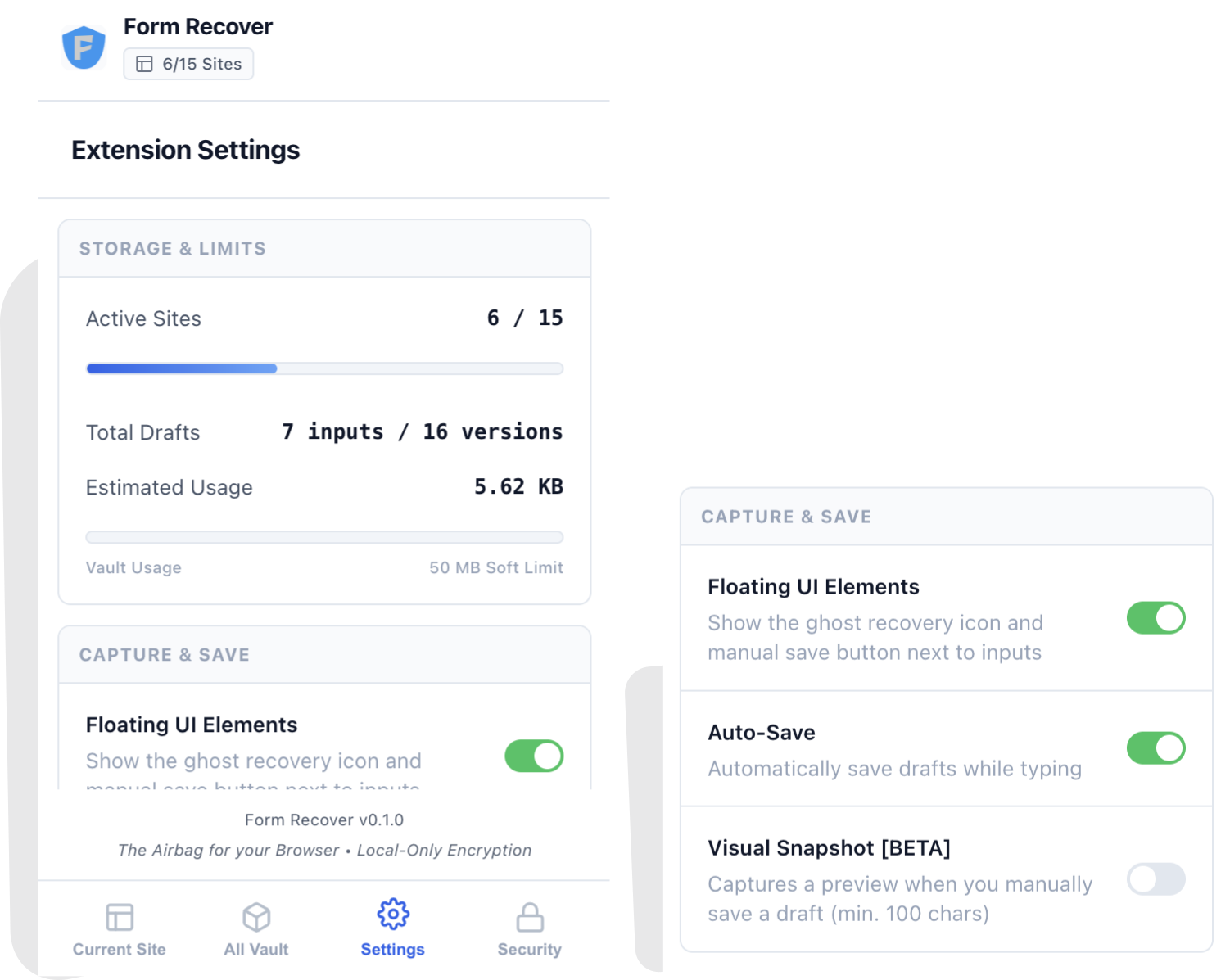
The Settings tab in the popup allows you to fine-tune how Form Recover behaves.
Storage & Capture
- Storage Stats: Monitor your local vault usage.
- Floating UI: You can hide the Ghost Icon globally if you prefer a stealthier experience (you can still restore via the Popup).
- Visual Snapshot [BETA]: Enable this to capture a visual screenshot of the field when you manually save.
Monitored Elements
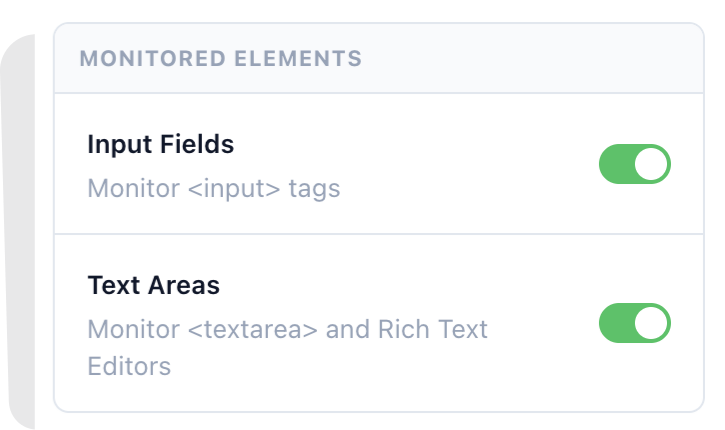
Control what Form Recover listens to. You can disable monitoring for <input> fields if you only care about long <textarea> drafts.
Advanced Settings
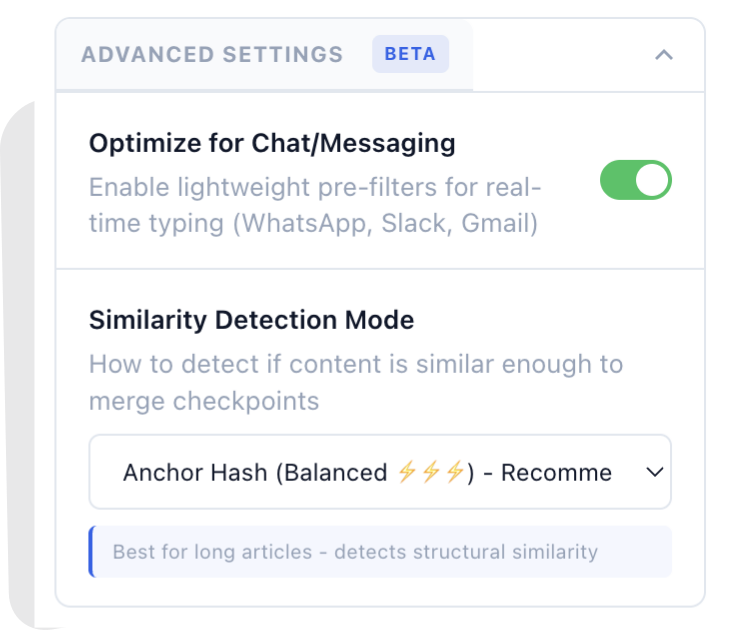
- Optimize for Chat: Enable special filters for real-time apps like WhatsApp Web or Slack to prevent flooding your history with every sent message.
- Similarity Detection: Choose how the extension handles new versions.
- Anchor Hash (Default): Smart detection based on field structure.
- Exact Match: Only saves if text is strictly different.
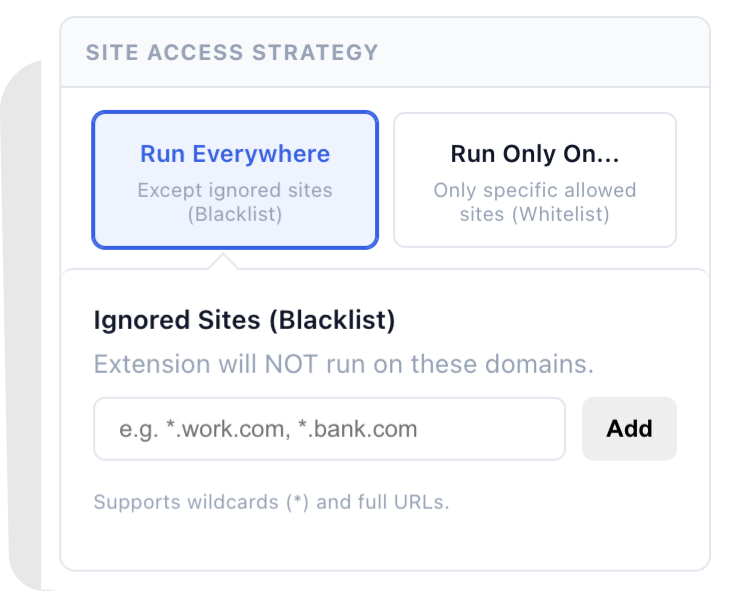
Site Access Strategy (Whitelist/Blacklist)
You can control exactly where Form Recover runs.
- Run Everywhere (Default): Runs on all sites except those in your “Ignored” list.
- Run Only On: Strict whitelist mode. Only runs on specific sites you add.
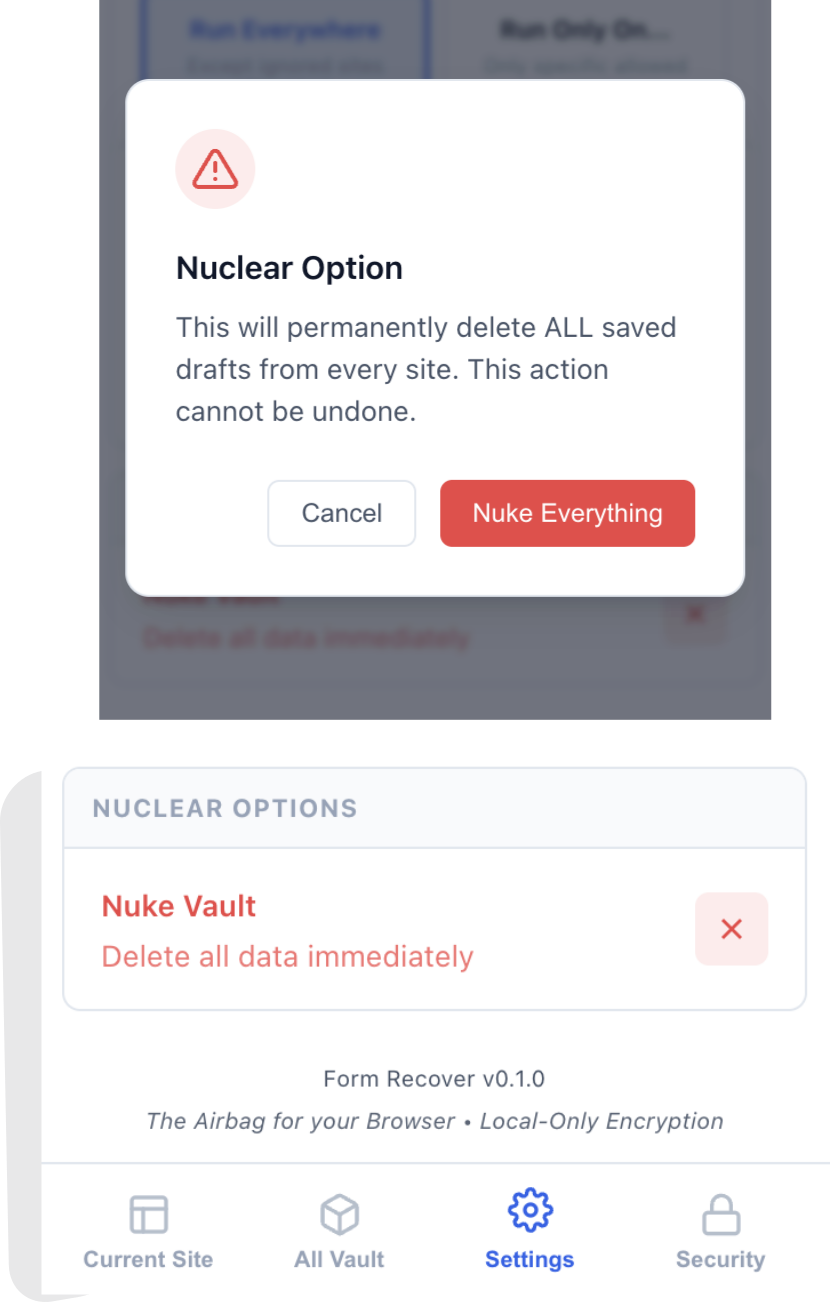
Nuclear Option
Need a fresh start? The “Nuke Vault” button permanently deletes all saved data and resets the database. This cannot be undone.